When you work on a bunch of smaller projects in OmegaT, or when you manage number of projects for your team, more often than not you end up with items in the Open Recent Project that are no longer available because the project folder was renamed or removed. To fix the issue, I put together a tiny script that checks each item in the list, and repopulates the list only with the projects that are still available.
It can be added to the scripts folder and run manually. If the script is placed into a subfolder named application_startup inside the scripts folder, it will run automatically each time OmegaT starts (not immediately, though, there’s usually a delay), and your Recent Projects menu will be always tidy.
A number of OmegaT settings can be either global or project-specific. Unfortunately, custom tags and flagged text definitions are not in that category of settings. A way to work around this limitation is creating a set of config folders and using one of them depending on the requirements for a particular project. This is doable, but can get messy pretty fast. There was a long discussion about making these two settings project-specific too, but it hasn’t been in implemented in OmegaT as of yet.
I wrote a script that needs to be placed into a folder named project_changed inside your scripts folder. This script checks if there are two files inside the omegat subfolder of the currently open project: omegat.customtags and omegat.flaggedtext. If either or both files are found, the RegEx expressions in them will be used in the project. While the project is open, changing to the RegEx should be done in a normal way, through OmegaT preferences (Preferences > Tag Processing). If the definitions in the newly open project are different from the ones used before, the project will reload once upon initial loading. Global custom tags and flagged text definitions are stored in omegat.customtags and omegat.flaggedtext inside the OmegaT configuration folder.
There are a few minor drawbacks with this approach:
It is impossible to edit global definitions while no project is open. And if the project is open, it needs to contain no project-specific custom tags and flagged text definitions.
Project-specific files with the definitions need to be copied to the project manually. The GUI doesn’t indicate in any way whether these are global or project-specific. If the global definitions are a passable starting point, those two files can be copied from the config folder (they will be created there automatically and will be populated with whatever RegEx was saved in OmegaT when the script was activated for the very first time, or if those files were deleted).
The script can be found on GitHub and Sourceforge. Any comments, complains and praises are always welcome.
A few years ago I wrote a script that exported the whole OmegaT to an HTML table. I used it a lot myself, and I know quite a few other people found it helpful too. The problem with the table produced by that script was that it had no way to show repeated or alternatively translated segments. I’ve rewritten the script since, but never published an announcement about that new version. Now I did a few more changes, and thought that it’s about time to fix that omission.
Below you’ll find a quick and dirty live preview solution for OmegaT on GNU/Linux.
In order for it to work, you’ll need any command line converter to convert your target files to PDF, and any PDF viewer to view the converted file. In the solution provided here Zathura PDF viewer is used. It is a very lightweight, keyboard-driven (albeit with vi-like keybindings) application that can invert document colors using a custom color scheme, and, most importantly, it reloads documents as they are changed, but keeps the previously open position, which makes it ideal for live previewing. Target files are converted using LibreOffice since I had it installed anyway; but any other command line tool that converts to PDF would do.
UPDATE (December 2022): This post below might be interesting only for historical reasons, but even that is highly doubtful. The updated solution to the merge and split problem is published here. Continue reading →
Here’s a GitHub project for an OmegaT plugin that converts URL’s in notes and comments into clickable items that open the URL’s in the default browser. Pretty neat, especially when you’re working in a team project and need to insert references for the editor or another translator.
In order to install the plugin one needs to create a folder named LinkBuilder (or whatever sounds good and preferably makes sense) inside plugins subfolder either in the OmegaT installation folder, or in OmegaT settings folder, download the latest release, and unzip it into the newly created LinkBuilder folder. The plugin will be activated upon OmegaT restart (or in a new OmegaT instance).
I don’t know who the author of the plugin is (other than his username at GitHub is hiohiohio), but kudos anyway!!!
Sometime ago my monkey approach to programming led me to creating a GUI for QA rules checking script. That was fun, the result was sometimes even usable, but since I don’t really know how to program, I got stuck with developing it. Ok, a rule or two was added now and then, but that doesn’t really count. But then all of a sudden the spellcheck script in OmegaT got drastically improved, and that meant I could mimic some new ideas. That’s exactly what I did, and here’s the new “QA – Check Rules” script:
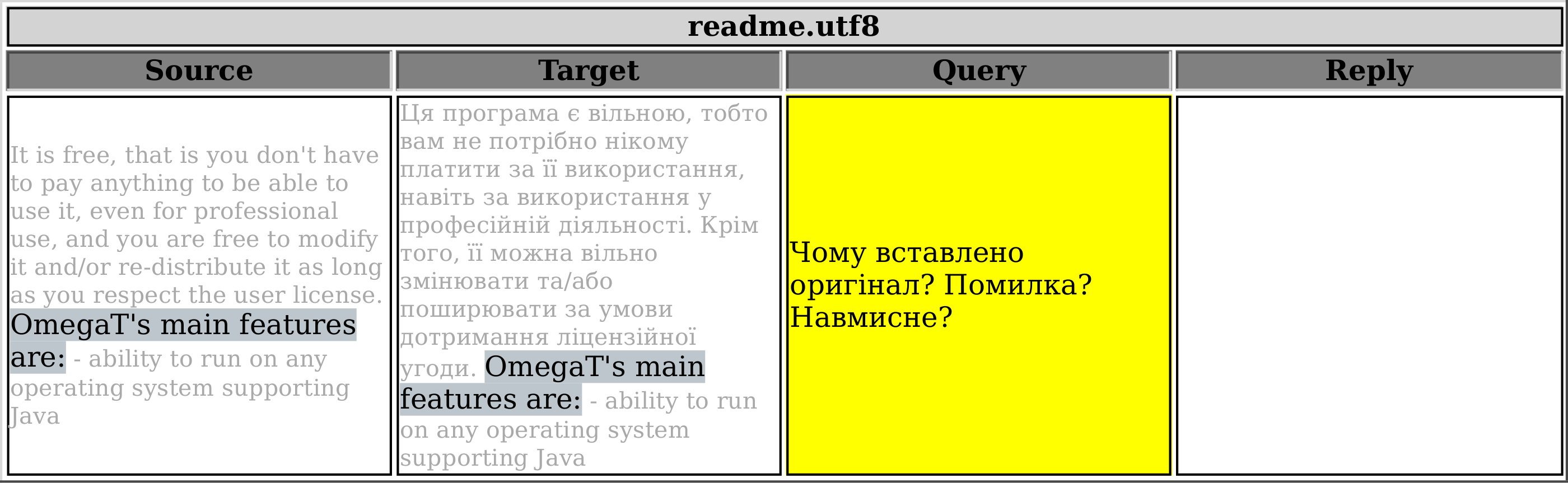
This script is variation of the one published before that exports all notes in the current project. The only difference is that this one allows you to select which notes will get exported based on the first line of the note. The resultant HTML table will consist of four columns: Source, Target, Filtered Notes (adjustable heading name), and Reply.
Say, you want to be able to export only the notes that start with <query>, as you’ve been using this word (<query>) to mark your questions to the client. In order to do so, go to line 14 and specify which mark-word was used. Note: The mark-word used to filter notes should be found in the very beginning of the very first line of the note, otherwise it’ll be ignored. In line 15 you can specify the column heading.




 True Translation