Project-specific custom tags and flagged text

A number of OmegaT settings can be either global or project-specific. Unfortunately, custom tags and flagged text definitions are not in that category of settings. A way to work around this limitation is creating a set of config folders and using one of them depending on the requirements for a particular project. This is doable, but can get messy pretty fast. There was a long discussion about making these two settings project-specific too, but it hasn’t been in implemented in OmegaT as of yet.

I wrote a script that needs to be placed into a folder named project_changed inside your scripts folder. This script checks if there are two files inside the omegat subfolder of the currently open project: omegat.customtags and omegat.flaggedtext. If either or both files are found, the RegEx expressions in them will be used in the project. While the project is open, changing to the RegEx should be done in a normal way, through OmegaT preferences (Preferences > Tag Processing). If the definitions in the newly open project are different from the ones used before, the project will reload once upon initial loading. Global custom tags and flagged text definitions are stored in omegat.customtags and omegat.flaggedtext inside the OmegaT configuration folder.

There are a few minor drawbacks with this approach:

  • It is impossible to edit global definitions while no project is open. And if the project is open, it needs to contain no project-specific custom tags and flagged text definitions.
  • Project-specific files with the definitions need to be copied to the project manually. The GUI doesn’t indicate in any way whether these are global or project-specific. If the global definitions are a passable starting point, those two files can be copied from the config folder (they will be created there automatically and will be populated with whatever RegEx was saved in OmegaT when the script was activated for the very first time, or if those files were deleted).

The script can be found on GitHub and Sourceforge. Any comments, complains and praises are always welcome.

This script has been developed for cApStAn.be

Launching external apps and scripts from OmegaT

OmegaT can launch external programs and scripts and pass certain project-specific data as parameters, and this is quite useful.
There are three ways to do this:

  1. External searches (global or project specific)
  2. Post-processing commands (global or project specific)
  3. OmegaT scripts

External searches can pass the text selected in OmegaT’s editor to the web browser as a URL to open. Such URLs consist of a fixed part (e.g. https://en.wikipedia.org/wiki/) and the selected text inserted somewhere in the URL instead of the placeholder ({target} in the External Search configuration). It’s also possible to open any other program instead of a web browser. This makes sense if the program you want to run is a dictionary application or other reference software that can accept parameters from standard input. An excellent example of such software is Goldendict.
What this approach lacks is the capability to pass other useful information, such as project languages or file locations. Not a big problem, especially if you are translating from one or two languages. But even with two, if you want to use a multilingual resource, it becomes necessary to create a separate external searches for each language, though the difference often is just a language code. There are ways to work around this limitation, but I’ll perhaps discuss that another time.

Post-processing commands have a much bigger list of supported variables, and they are great for tasks like file format conversion or live preview. Despite their versatility, these commands cannot receive input directly from OmegaT’s editor. Moreover, they only execute when generating target files, making them less suitable for tasks like lookups or note-taking that may need to be performed multiple times even while working on a single segment.

With OmegaT scripts it’s possible to execute an external application and pass almost anything related to the project: source and target text of the current segment, selection in the editor, paths to the various files in the project that OmegaT is aware of, project languages along with their country variants, current file, and more.
Years ago I did write a script exactly for that purpose, and I think it was my very first script in Groovy. It’s quite straightforward: it only collects a whole bunch of variables and passes them to an external script or app that can decide how to handle them. That external part was written with Linux in mind. GNU/Linux readily provides Bash shell (or a number of other shells to chose from) that makes it possible to combine multiple components into a practical routine tailored to specific requirements, and Zenity, a handy utility that simplifies the creation of basic GUI dialog windows for seamless interaction with Bash scripts. The concept was very simple: OmegaT gets all the needed variables and launches my Bash+Zenity script. This script, in turn, presents a list of various actions, and once a choice is made, the corresponding action is executed. It worked beautifully (at least according to my definition of beauty). Over time, the list of actions expanded, and I relied on it daily.
Recently I switched to macOS, and at first those thing were badly missed while working in OmegaT. But it turned out that Zenity is available through Homebrew, while Bash is already available out of the box. Thus, the only task remaining was making sure my old creation is compatible with both operating systems.

So here I present that combination now working equally well on Linux and macOS.

Nota bene:

  • <omegat_config> below refers to OmegaT configuration folder. You can access it by pressing OptionsAccess Configuration Folder in OmegaT.

  • If the window called Scripting that pops up by pressing ToolsScripting is empty for some reason, you may want to go to <omegat_config> and create a folder called scripts there (note the plural).
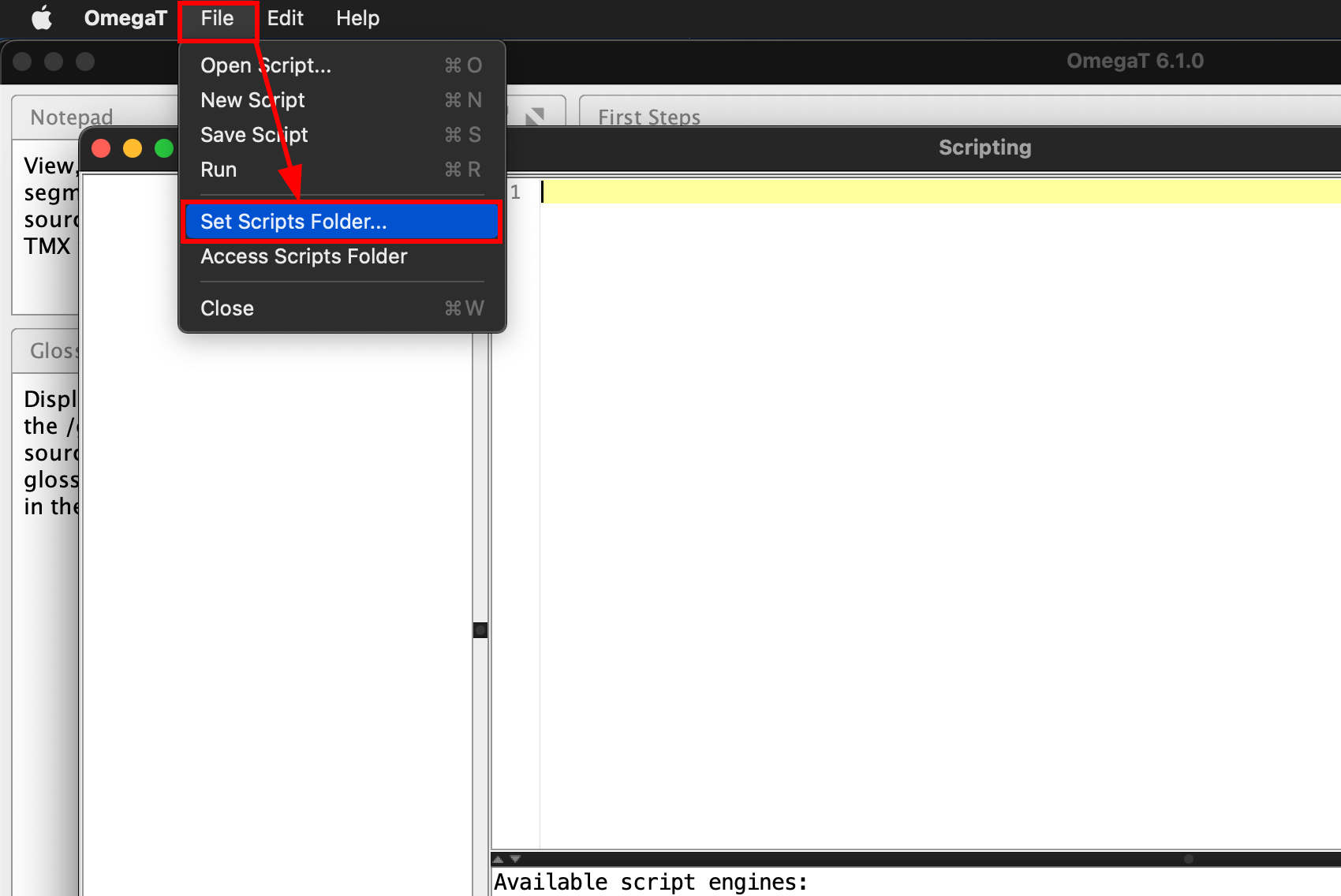
    Then in the Scripting window, click FileSet Scripts Folder…, and select the newly created folder (under Linux and Mac, you can simply drag the folder onto buttons in the file chooser, and that folder will be selected automatically)

  • Any new scripts should be placed into this folder. If you need any of the scripts bundled with OmegaT (there are a few useful ones), copy them over from where OmegaT is installed (OmegaT.app/Contents/Java/scripts on Mac)

So, here we go:

  1. Add the Groovy script to your OmegaT scripts.
    • The script is called utils_external_opener.groovy, and it can be downloaded here and here.
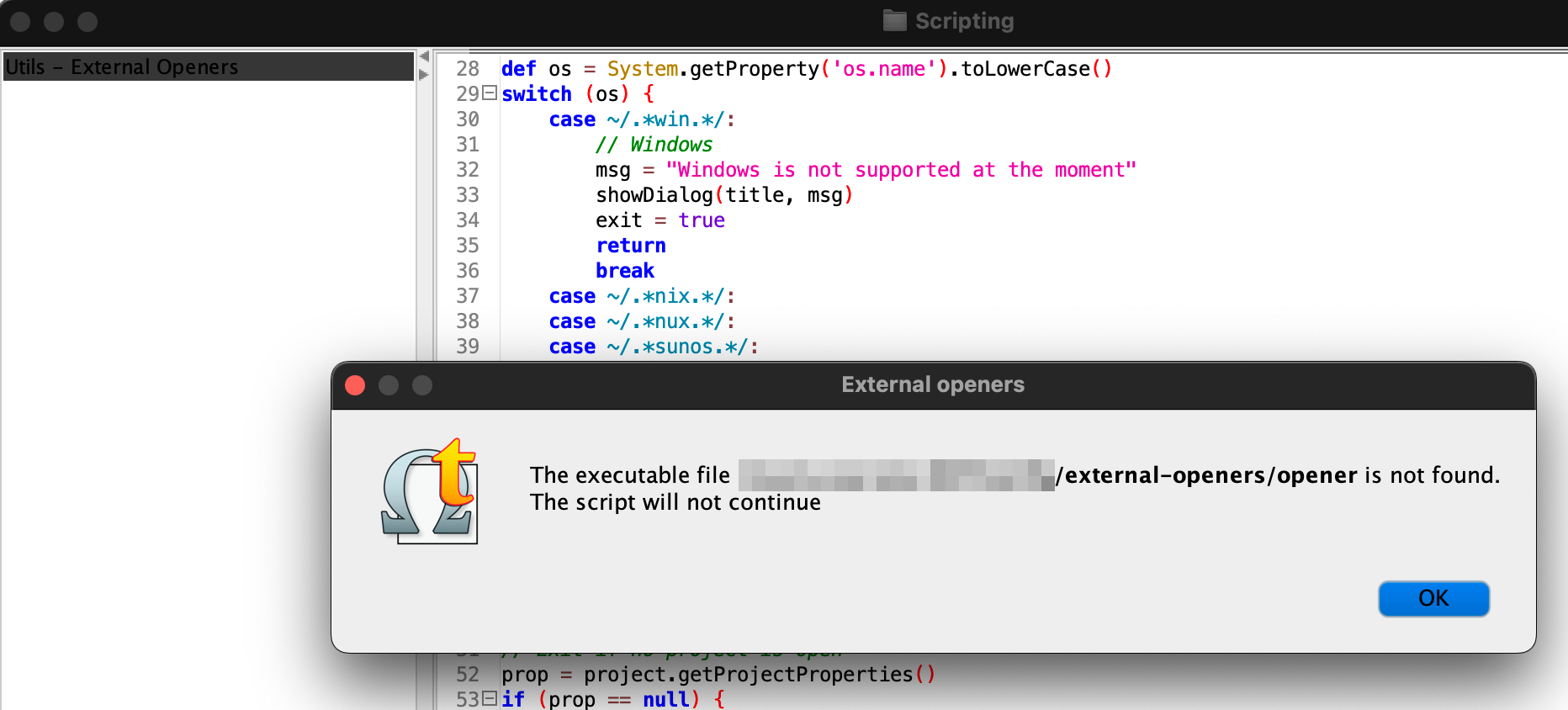
    • The script expects an executable called opener to be located in folder <omegat_config>/external-openers/. It will not continue if neither that folder, nor the executable is found. See p. 2 for details about that external part.
    • When the groovy script is successfully run, it creates a file called opener.vars in <omegat_config>/external-openers/. It is a plain text file containing the collected variables in this simple format:
      variable='value'
    • The script then executes <omegat_config>/external-openers/opener and passes the location of the opener.vars to it.
  2. Copy my opener to <omegat_config>/external-openers/
    • To do so, download the zip file containing the external launcher from here or here.
      Place the zip inside <omegat_config> and unpack there. It will create <omegat_config>/external-openers with the file opener. After that, the zip file can be deleted.
    • opener is a Bash script that doesn’t do anything useful on it’s own. It simply lists everything it finds in <omegat_config>/external-openers/actions/ via a selection list dialog (if you used the zip file, the subfolder actions/ and its contents were added too). Once the selection is made, the selected item is executed. Items under <omegat_config>/external-openers/actions/ can be scripts written in various scripting languages (as long as your OS knows how to execute them), or compiled binaries, but not application bundles.
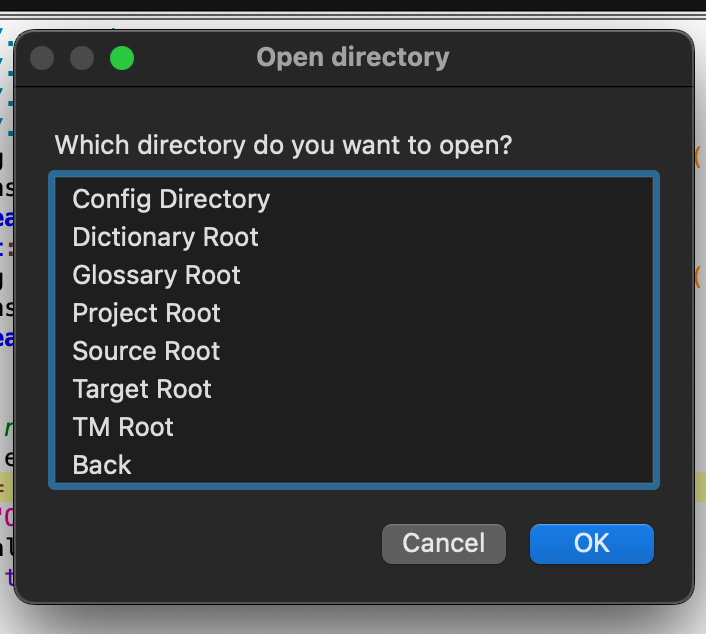
    • I offer three such action scripts: “Open Directories”, “Rename target files”, and “Web Lookup”. “Rename target files” asks several questions when it’s executed, the other two present further list (but that’s as far as the lists go in the bundle I here present). The Web Lookup works with the selected text, or, if no selection is made, with current segment’s source text. Wikipedia languages, and DeepL and Google language pairs are taken from the current project language settings.
    • Make sure that <omegat_config>/external-openers/opener and everything under <omegat_config>/external-openers/actions/ is set to be executable.
  3. Make sure Zenity is installed.
    • On macOS, you may need to enable Homebrew and install Zenity with
      brew install ncruces/tap/zenity
      (this is a Zenity rewrite that doesn’t depend on GTK+; I haven’t checked the GTK+ version available through Homebrew and Macports.)
    • On Linux, Zenity is most likely already installed, but if not, just install it using your package manager.
  4. There’s Bash and Zenity for Windows, but there’s no time whatsoever to make sure this setup runs on Windows too. If anyone is interested to check and adapt it as needed, I’ll be happy to incorporate their findings.
  5. The script described here makes the following OmegaT info accessible to the external opener:
    • selected text (if nothing selected, the current segment’s source will be used)
    • URL-encoded selected text
    • current segment’s target
    • URL-encoded target
    • current segment source
    • URL-encoded source
    • project’s path
    • path to the omegat subfolder of the current project
    • path to the current project source folder
    • path to the current project target folder
    • path to the current project tm folder
    • path to the current project glossaries folder
    • path to the current project dictionaries folder
    • path to the current file open in the editor
    • path to the writable glossary
    • path to the OmegaT configuration folder
    • path to the OmegaT scripts folder
    • source language code
    • target language code
    • source language country variant
    • target language country variant
    • source language name
    • target language
    • language in which OmegaT is run

If you have questions, you can always leave them in comments. Happy translating!

Export #OmegaT Project to Excel

This post is about a script that exports OmegaT project to an XLS document with a separate worksheet for each source file. Continue reading

“Filtered” Note Export in #OmegaT

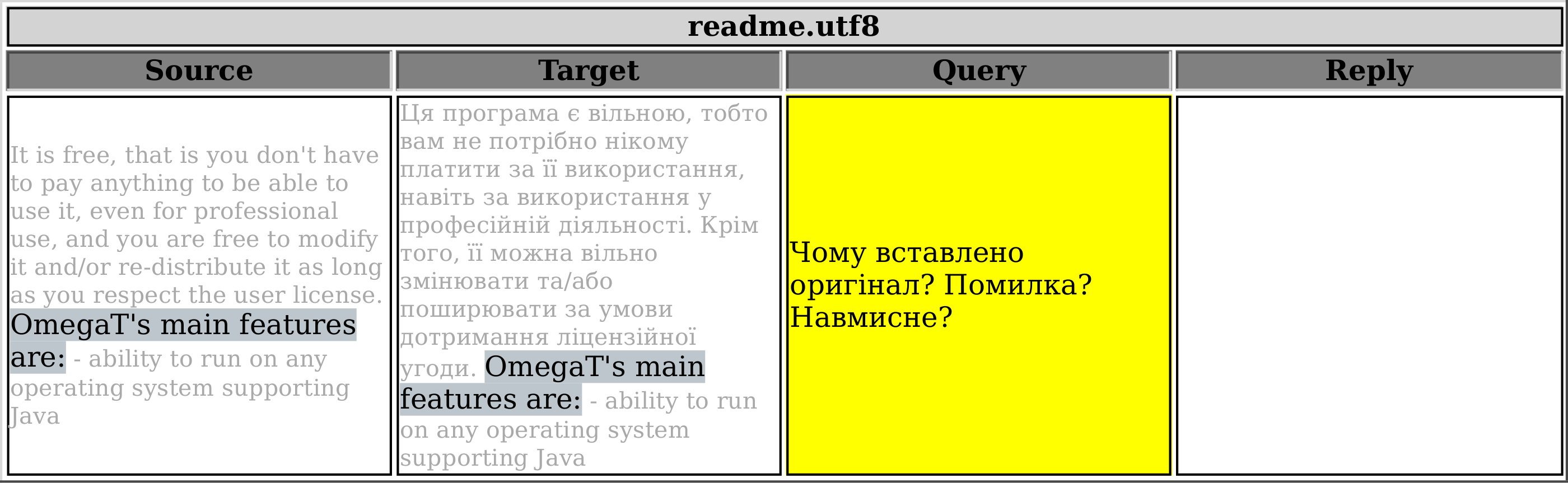
This script is variation of the one published before that exports all notes in the current project. The only difference is that this one allows you to select which notes will get exported based on the first line of the note. The resultant HTML table will consist of four columns: Source, Target, Filtered Notes (adjustable heading name), and Reply.
Say, you want to be able to export only the notes that start with <query>, as you’ve been using this word (<query>) to mark your questions to the client. In order to do so, go to line 14 and specify which mark-word was used. Note: The mark-word used to filter notes should be found in the very beginning of the very first line of the note, otherwise it’ll be ignored. In line 15 you can specify the column heading.

All project notes

All project notes

Only filtered notes

Only filtered notes

Continue reading

Export OmegaT Project to HTML table

Here’s a script that lets you export your whole OmegaT project into an HTML file with one or more tables, one for each source file. The left column will have source segments, and the right will be either blank if the segment isn’t translated, or populated with translation (or , if translation was set to be empty). Each table will have source file name for its heading. The script was requested and kindly sponsored by Roman Mironov at Translation Agency Velior. As usual, in the below listing the heading is a link to pastebin.com where you can download this script. Continue reading

Export TMX for selected files

OmegaT exports TMX for current files in the project every time translated documents are created. It writes three TMX files in the root of the project. But what if you need a translation memory file that contains translation units of only one or several files, not all that are currently present in the project. One solution is to temporarily move unneeded files out of source folder, reload the project and then create translated documents. But it is somewhat awkward and time consuming.
Here’s a groovy script that lets you select one or several files located in the same subfolder of the current project’s /source. Once they are selected, the script writes selected_files.[date_time].tmx in the project root. This TMX-file contains TU’s only for the selected files.

  • write_sel_files2TMX.groovy
    /*
     * Purpose:	Export source and translation segments of user selected 
     *	files into TMX-file
     * #Files:	Writes 'selected_files_<date_time>.tmx' in the current project's root
     * #File format:	TMX v.1.4
     * #Details:	http:/ /wp.me / p3fHEs-6g
     *
     * @author  Kos Ivantsov
     * @date    2013-08-12
     * @version 0.3
     */
    
    import javax.swing.JFileChooser
    import org.omegat.util.StaticUtils
    import org.omegat.util.TMXReader
    import static javax.swing.JOptionPane.*
    import static org.omegat.util.Platform.*
    
    def prop = project.projectProperties
    if (!prop) {
    	final def title = 'Export TMX from selected files'
    	final def msg   = 'Please try again after you open a project.'
    	showMessageDialog null, msg, title, INFORMATION_MESSAGE
    	return
    }
    
    def curtime = new Date().format("MMM-dd-yyyy_HH.mm")
    srcroot = new File(prop.getSourceRoot())
    def fileloc = prop.projectRoot+'selected_files_'+curtime+'.tmx'
    exportfile = new File(fileloc)
    def sourceroot = prop.getSourceRoot().toString() as String
    
    JFileChooser fc = new JFileChooser(
    	currentDirectory: srcroot,
    	dialogTitle: "Choose files to export",
    	fileSelectionMode: JFileChooser.FILES_ONLY, 
    	//the file filter must show also directories, in order to be able to look into them
    	multiSelectionEnabled: true)
    
    if(fc.showOpenDialog() != JFileChooser.APPROVE_OPTION) {
    console.println "Canceled"
    return
    }
    
    if (!(fc.selectedFiles =~ sourceroot.replaceAll(/\\+/, '\\\\\\\\'))) {
    		console.println "Selection outside of ${prop.getSourceRoot()} folder"
    		final def title = 'Wrong file(s) selected'
    		final def msg   = "Files must be in ${prop.getSourceRoot()} folder."
    		showMessageDialog null, msg, title, INFORMATION_MESSAGE
    		return
    	}
    
    if (prop.isSentenceSegmentingEnabled())
    	segmenting = TMXReader.SEG_SENTENCE
    	else
    	segmenting = TMXReader.SEG_PARAGRAPH
    
    def sourceLocale = prop.getSourceLanguage().toString()
    def targetLocale = prop.getTargetLanguage().toString()
    
    exportfile.write("", 'UTF-8')
    exportfile.append("<?xml version=\"1.0\" encoding=\"UTF-8\"?>\n", 'UTF-8')
    exportfile.append("<!DOCTYPE tmx SYSTEM \"tmx11.dtd\">\n", 'UTF-8')
    exportfile.append("<tmx version=\"1.4\">\n", 'UTF-8')
    exportfile.append(" <header\n", 'UTF-8')
    exportfile.append("  creationtool=\"OmegaTScripting\"\n", 'UTF-8')
    exportfile.append("  segtype=\"" + segmenting + "\"\n", 'UTF-8')
    exportfile.append("  o-tmf=\"OmegaT TMX\"\n", 'UTF-8')
    exportfile.append("  adminlang=\"EN-US\"\n", 'UTF-8')
    exportfile.append("  srclang=\"" + sourceLocale + "\"\n", 'UTF-8')
    exportfile.append("  datatype=\"plaintext\"\n", 'UTF-8')
    exportfile.append(" >\n", 'UTF-8')
    fc.selectedFiles.each{
    	fl = "${it.toString()}" - "$sourceroot"
    	exportfile.append("  <prop type=\"Filename\">" + fl + "</prop>\n", 'UTF-8')
    }
    exportfile.append(" </header>\n", 'UTF-8')
    exportfile.append("  <body>\n", 'UTF-8')
    
    def count = 0
    fc.selectedFiles.each{
    	fl = "${it.toString()}" - "$sourceroot" 
    	files = project.projectFiles
    	files.each{
    		if ( "${it.filePath}" != "$fl" ) {
    		println "Skipping to the next file"
    		}else{
    	it.entries.each {
    	def info = project.getTranslationInfo(it)
    	def changeId = info.changer
    	def changeDate = info.changeDate
    	def creationId = info.creator
    	def creationDate = info.creationDate
    	def alt = 'unknown'
    	if (info.isTranslated()) {
    		source = StaticUtils.makeValidXML(it.srcText)
    		target = StaticUtils.makeValidXML(info.translation)
    		exportfile.append("    <tu>\n", 'UTF-8')
    		exportfile.append("      <tuv xml:lang=\"" + sourceLocale + "\">\n", 'UTF-8')
    		exportfile.append("        <seg>" + "$source" + "</seg>\n", 'UTF-8')
    		exportfile.append("      </tuv>\n", 'UTF-8')
    		exportfile.append("      <tuv xml:lang=\"" + targetLocale + "\"", 'UTF-8')
    		exportfile.append(" changeid=\"${changeId ?: alt }\"", 'UTF-8')
    		exportfile.append(" changedate=\"${ changeDate > 0 ? new Date(changeDate).format("yyyyMMdd'T'HHmmss'Z'") : alt }\"", 'UTF-8')
    		exportfile.append(" creationid=\"${creationId ?: alt }\"", 'UTF-8')
    		exportfile.append(" creationdate=\"${ creationDate > 0 ? new Date(creationDate).format("yyyyMMdd'T'HHmmss'Z'") : alt }\"", 'UTF-8')
    		exportfile.append(">\n", 'UTF-8')
    		exportfile.append("        <seg>" + "$target" + "</seg>\n", 'UTF-8')
    		exportfile.append("      </tuv>\n", 'UTF-8')
    		exportfile.append("    </tu>\n", 'UTF-8')
    		count++;
    				}
    			}
    		}
    	}
    }
    exportfile.append("  </body>\n", 'UTF-8')
    exportfile.append("</tmx>", 'UTF-8')
    
    final def title = 'TMX file written'
    final def msg   = "$count TU's written to " + exportfile.toString()
    console.println msg
    showMessageDialog null, msg, title, INFORMATION_MESSAGE
    return
    

    The TMX file is rewritten each time the script in invoked.

Big thank you goes to Roman Mironov and Velior Translation Agency for the idea and comprehensive support.
Suggestions and comments are always welcome.
But as of now,


wordpress visitor

Good luck!

Write all source segments to a file

Update: Please, download scripts from the dedicated SF.net project page where they are maintained. Scripts at the links below might be obsolete (though most likely still working).

Since we started to make OmegaT write stuff to files, let’s try to dump all source segments to one file. I’m pretty sure one can find some use for it.

  • write_source2file.groovy
    /*
     * #Purpose:	Write all source segments to a file
     * #Files:	Writes 'allsource.txt' in the current project's root
     * 
     * @author:	Kos Ivantsov
     * @date:	2013-07-16
     * @version:	0.2
     */
    
    /* change &quot;includefilenames&quot; to anything but 'yes' (with quotes)
     * if you don't need filenames to be included in the file */
    
    def includefilenames = 'no'
    def includerepetitions = 'no'
    
    import static javax.swing.JOptionPane.*
    import static org.omegat.util.Platform.*
    
    // abort if a project is not opened yet
    def prop = project.projectProperties
    if (!prop) {
    	final def title = 'Source to File'
    	final def msg   = 'Please try again after you open a project.'
    	showMessageDialog null, msg, title, INFORMATION_MESSAGE
    	return
    }
    
    def folder = prop.projectRoot+'/script_output'
    def fileloc = folder+'/allsource.txt'
    writefile = new File(fileloc)
    if (! (new File(folder)).exists()) {
    	(new File(folder)).mkdir()
    	}
    
    writefile.write(&quot;&quot;, 'UTF-8')
    def count = 0
    def uniqline
    
    if (includefilenames == 'yes') {
    	files = project.projectFiles;
    	for (i in 0 ..&lt; files.size())
    	{
    		fi = files[i];
    		marker = &quot;+${'='*fi.filePath.size()}+\n&quot;
    		writefile.append(&quot;$marker|$fi.filePath|\n$marker&quot;, 'UTF-8')
    		for (j in 0 ..&lt; fi.entries.size())
    		{
    		ste = fi.entries[j];
    		source = ste.getSrcText();
    		writefile.append source +&quot;\n&quot;, 'UTF-8'
    		count++;
    		}
    	}
    } else {
    	project.allEntries.each { ste -&gt;
    	source = ste.getSrcText();
    	writefile.append source+&quot;\n&quot;,'UTF-8'
    	count++
    		}
    	console.println &quot;$count segments found in all files&quot;
    	if (includerepetitions != 'yes') {
    		count = 0
    		uniqline = writefile.readLines().unique()
    		//console.println uniqline
    		writefile.write(&quot;&quot;,'UTF-8')
    		uniqline.each {
    		writefile.append &quot;$it\n\n&quot;,'UTF8';
    		count++
    				}
    			}
    	}
    
    console.println count +&quot; segments written to &quot;+ writefile
    final def title = 'Source to File'
    final def msg   = count +&quot; segments&quot;+&quot;\n&quot;+&quot;written to \n&quot;+ writefile
    showMessageDialog null, msg, title, INFORMATION_MESSAGE
    return
    

    Once the script is invoked, it’ll create a file named “allsource.txt” in the current project’s root folder, where each segment will be on a new line. It’ll contain all the segments, even the ones that are already translated, and all the repetitions. The script can either just dump all segments into the file, or write out a filename in a box like this
    +====+
    |file|
    +====+

    followed by all the segments that belong to this file, and then a new filename and respective segment, and so on, or just dump all the segments in the order they appear in OmegaT without indicating what files they belong to. This behavior can be triggered by changing line 13. When it says def includefilenames = 'yes', you’ll get filenames written to the allsource.txt, but if you don’t want the filenames, change ‘yes’ to anything else or even leave it empty, making sure you have quotes, i.e. it can say def includefilenames = 'no, thanks' or even def includefilenames = '', but not def includefilenames = no (no quotes in the last example).
    The way the filenames get marked is defined in lines 44, 45.
    If filenames are not included, one can choose whether to include repetitions (line 14). 'yes' means “yes”, anything else, even 'yep', means “no”.

Suggestions, enhancements, bug reports, donations, postcards, invitations to a cup of coffee, feature requests, interesting translation projects with a good pay etc. are always welcome. Criticism isn’t, but will be accepted too.


wordpress visitor

But as of now,
Good luck

File Renamer (Bash from within OmegaT)

Situation

You have a client who loves to give his files very descriptive names. That’s understandable as mostly the files you get to translate from him are lessons, lectures, howtos, manuals and so on. It makes sense to distribute them digitally with localized filenames.

Problem

What you need is a way to translate filenames in OmegaT thus keeping consistency with the contents of the translated files and past/future files from the same client.
Continue reading