Project-specific custom tags and flagged text

A number of OmegaT settings can be either global or project-specific. Unfortunately, custom tags and flagged text definitions are not in that category of settings. A way to work around this limitation is creating a set of config folders and using one of them depending on the requirements for a particular project. This is doable, but can get messy pretty fast. There was a long discussion about making these two settings project-specific too, but it hasn’t been in implemented in OmegaT as of yet.

I wrote a script that needs to be placed into a folder named project_changed inside your scripts folder. This script checks if there are two files inside the omegat subfolder of the currently open project: omegat.customtags and omegat.flaggedtext. If either or both files are found, the RegEx expressions in them will be used in the project. While the project is open, changing to the RegEx should be done in a normal way, through OmegaT preferences (Preferences > Tag Processing). If the definitions in the newly open project are different from the ones used before, the project will reload once upon initial loading. Global custom tags and flagged text definitions are stored in omegat.customtags and omegat.flaggedtext inside the OmegaT configuration folder.

There are a few minor drawbacks with this approach:

  • It is impossible to edit global definitions while no project is open. And if the project is open, it needs to contain no project-specific custom tags and flagged text definitions.
  • Project-specific files with the definitions need to be copied to the project manually. The GUI doesn’t indicate in any way whether these are global or project-specific. If the global definitions are a passable starting point, those two files can be copied from the config folder (they will be created there automatically and will be populated with whatever RegEx was saved in OmegaT when the script was activated for the very first time, or if those files were deleted).

The script can be found on GitHub and Sourceforge. Any comments, complains and praises are always welcome.

This script has been developed for cApStAn.be

Merge and split segments in OmegaT (update)

The OmegaT script for merging and splitting segments has received a few new improvements:

  • The locale code for the “MergeSplit” rule set now matches the project’s source locale. This may not be very convenient in some cases, but it was introduced to work around a new development in OmegaT that reverts the names of the sets containing only the language code followed by .* back to their predefined names (i.e. “MergeSplit” created for “EN.*” will become “English” for “EN.*”).
  • If separateMappingRule is set to false, new rules created by the script will be added to the first set with the matching locale or language code (see this post for available options in the script and how to set them).
  • All dialogs (alerts and confirmations) are now placed in the center of the main OmegaT window. This solves a rather annoying problem in a multi-monitor setup where all new dialogs would pop up on the main screen regardless of the position of OmegaT.

The new version has been tested on OmegaT 5.7.x and 6.x. If you need help with installing and using scripts in OmegaT, see this post.

The script is available on GitHub and FS.net.

If you need more info on how to install and use OmegaT scripts, see this quick guide.

If you find this script useful, please leave a comment.

There’s also a very easy way to say thank you.
Your support makes more scripts like this possible.

Happy merging and splitting!

OmegaT windows automatically open on startup

When OmegaT loads a project, it also pops up a window called “Project Files” that lists the supported source files in the project. It’s handy if you have multiple files, but I often find myself hitting Esc as soon as it pops up to get it out of the way. This window can be called up at any time by selecting Project > Project Files or pressing Ctrl+L/⌘+L, so it would be great if this automatic display of the window was disabled. There is no GUI option to do this in the preferences, but there is a “hidden” preference for that (meaning that it can’t be changed using GUI, but can be set directly in the OmegaT configuration file). The name of the preference is project_files_show_on_load, and it could be set to false by editing omegat.prefs in the OmegaT configuration folder. But if you don’t feel comfortable editing that file, I’ve put together a script that will toggle this preference between true and false. Just add it to the scripts folder. Each time it is run, the preference is toggled.

Another window I wish would open automatically every time OmegaT starts is the Scripting window. The way the whole scripting shebang is implemented in OmegaT makes it next to impossible to get the window to open with a keyboard shortcut. There is a menu item under Tools to open the Scripting window, but one can’t assign a key combination to run it without going to the menu. So here’s a script that opens the Scripting window whenever it runs. It makes almost no sense to put it directly in the scripts folder because you would have to open the Scripting window first to run the script. But if the script is placed in the application_startup subfolder of the scripts folder, the scripting window will open every time OmegaT is started.

Spellcheck menu

Here’s a script that jumps the caret to the closest misspelled word in the current segment (in the direction towards the beginning of the target text) and brings up the context menu that you usually get on a misspelled word. It allows to correct, add, or ignore misspelled words in the current segment without using the mouse or pressing arrows to move the caret to the required position in the text. If you’re familiar with Alt+F7 in MS Word, you get the idea. The script should be assigned to one of the 12 available script slots, and then it can be run by pressing Ctrl+Shift+Fn. If Alt+F7 in MS Word is something that you use often, it makes sense to assign it to the slot 7 and run it with Ctrl+Shift+7 to make it easier to remember.

Context menu with spelling suggestions called by the script

As usual, the script can be downloaded from two locations:

Any comments or suggestions are always welcome. If you find it useful, there’s an easy way to say thank you.

Merge and split segments in OmegaT (update)

The OmegaT script for merging and splitting segments has received a few improvements:

  • It can display the text to be split or merged with or without tags.
  • If tags are to be shown, they can be formatted with a different font color and size to make the actual text more readable.
  • If a split is attempted while the text cursor is inside a tag, the script won’t add a rule and will inform the user.
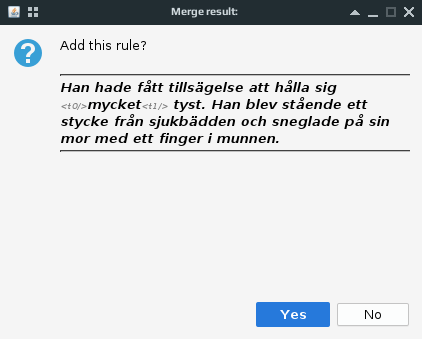
  • The preview of the split or merge to be performed now has horizontal borders to make it easier to see the possible result.

So, these are the options that can be configured by the user:

enforceProjectSRX   = true   //if true, the script will make sure project-specific segmentation is enabled
separateMappingRule = true   //if true, the script will add a separate group for its rules
showTags            = true   //if false, tags won't be shown in the confirmation message
paintTags           = true   //if true, tags will be shown in different font size and color
tagColor            = "gray" //tag color
tagSize             = 1      //tag size

Comments in these lines should make it pretty clear what each option does. To change an option, go to Tools → Scripting…, then select Merge or split segments in the list of scripts. In the text area on the right side of the screen, scroll down a bit (to about line 30), find the option you want to change, edit it, press Ctrl+S to save, and run the script.

The script is available on GitHub and FS.net.

If you need more info on how to install and use OmegaT scripts, see this quick guide.

If you find this script useful, please leave a comment.

There’s also a very easy way to say thank you.
Your support makes more scripts like this possible.

Happy merging and splitting!

Merge and split segments in OmegaT

This article is about performing merging and splitting segments in OmegaT using a convenient groovy script.

Continue reading

Select Source Text in OmegaT

There might be a number of situations when the whole text of the current segment’s source is needed for something other than translation itself: performing concordance or web search, writing a translation note in another application, asking your client or project manager about the text, etc.

Currently, in OmegaT it can be achieved in several fairly easy ways:

  • Selecting the text with the mouse (but who wants to do that?)
  • Inserting the source text into the target area (Ctrl+Shift+I or Ctrl+Shift+R) and selecting the text there
  • Unlocking the text caret with F2, and then using arrow buttons and Shift to select the text
    (If you want to have the caret unlocked by default when you start OmegaT, there’s a way to do it)

All that is fine, but it would be much nicer to have a simple shortcut to select that source text, similar to what Ctrl+A does (which in OmegaT Editor selects everything only in the target field, or the complete textual contents of other panes if the got focus). I’ve written a simple script that does just that, and though scripts can be bound only to Ctrl+Shift+F[1-12] keys, it’s better than not having a shortcut at all. Hopefully, this function might appear in OmegaT itself, but before it happened, here you have it:
Get it from SF.net
Get it from GitHub

To learn how to install and use OmegaT scripts, see this quick guide.

Happy selecting!

Export #OmegaT Project to Excel (UPDATE)

The earlier version of this script was described in this article. Here I’m announcing the update to the script which makes it possible to include:

  • Segment ID for each segment (applicable only for some file types)
  • Translator’s ID of the segment’s translation creator
  • Translator’s ID of the segment’s translation editor
  • Segment notes
  • Visual marks to show segments’ uniqueness or repetitions (grayish background, marks 1 or + in the dedicated column: for the first occurrence, or further instances of the repeated segment, respectfully)
  • Visual marks for alternative translations (different font color, mark a with a different background in the dedicated column)
  • Visual marks for untranslated segments (mark NT in the dedicated column)
  • Visual marks for paragraph boundaries (upper border over the source and target text which visually groups the text belonging to the same paragraph)

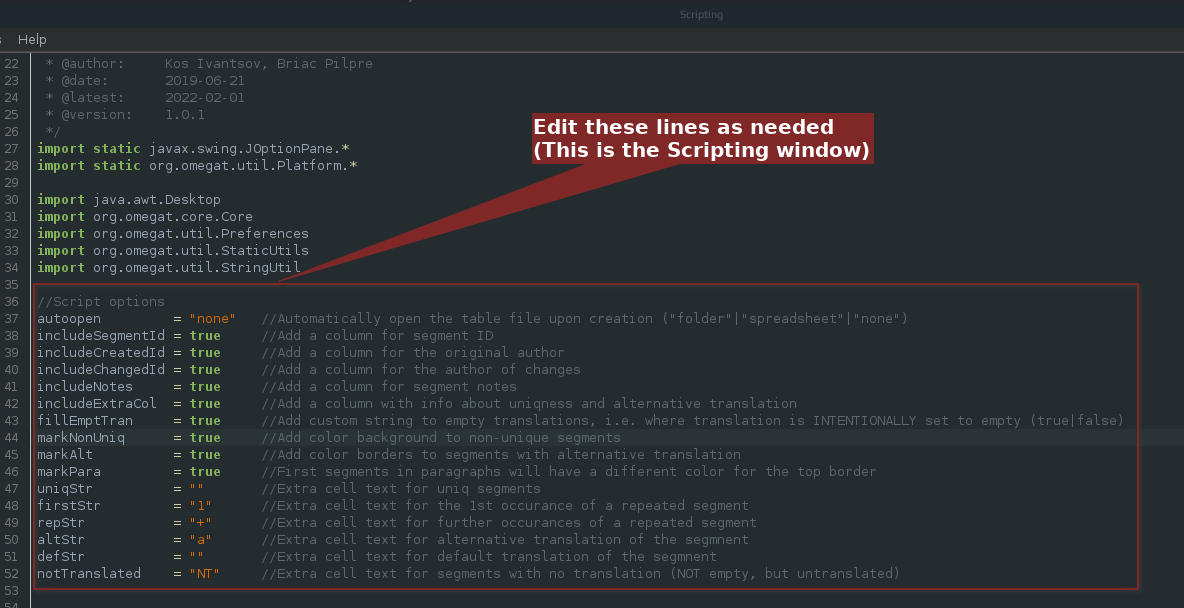
All of the above features are optional, though they are on by default. To disable or change them, editing the script is required, but all those lines are very easy to understand, they have comments, and are placed almost in the very beginning of the script:

Scripting window with the script options in focus

Unlike the earlier version, the script produces the tabular output:

Segment #Source TextTarget TextUniq/AlSegment IDCreatorChangerNote

The script can be downloaded from
SF.net repository
GitHub repository

To learn how to install and use OmegaT scripts, see this quick guide.

Comments, suggestions, complaints, and donations are always welcome!

Happy spreadsheeting!

#OmegaT Merge/Split script updated

These days I often get jobs in IDML format. Luckily such files can be translated in OmegaT either with the Okapi filters plugin, or, if the files are not so plain and simple, by creating an OmegaT project in Okapi Rainbow. But it’s somewhat beyond the point. The point is that with these files the wonderful script to merge and split segments wasn’t working, at least for merging.
As you’ve rightly guessed, this tiny post is to inform you that it has been fixed, and the updated script could be downloaded from the SF.net repository.

December 2022 update: The updated merge and split script is described here.

To learn how to install and use OmegaT scripts, see this quick guide.

Happy merging and splitting, fellow OmegaTers!

Unlock Text Caret on #OmegaT Startup

As many have probably noticed, in OmegaT it’s now possible to unlock cursor. This means that one can select and copy text anywhere in the Editor pane without using the mouse. With the unlocked cursor you simply press up or down, and the text caret will move beyond the target segment. The lock is triggered with F2. Cool! But there’s no way to make this behavior default — every time OmegaT is started, cursor is locked.

Since I prefer it to be unlocked most of the time, here’s a little workaround. Below is a little script that needs to go into scripts_folder/application_startup/:

def gui() {
    editor.editor.lockCursorToInputArea = false
    editor.editor.updateLockInsertMessage()
}
return

This little snippet should be saved as a plaintext file with extension groovy, for instance, unlock.groovy. Next time OmegaT 4.2 or newer is started, the cursor is going to be unlocked from the get-go!