Project-specific custom tags and flagged text

A number of OmegaT settings can be either global or project-specific. Unfortunately, custom tags and flagged text definitions are not in that category of settings. A way to work around this limitation is creating a set of config folders and using one of them depending on the requirements for a particular project. This is doable, but can get messy pretty fast. There was a long discussion about making these two settings project-specific too, but it hasn’t been in implemented in OmegaT as of yet.

I wrote a script that needs to be placed into a folder named project_changed inside your scripts folder. This script checks if there are two files inside the omegat subfolder of the currently open project: omegat.customtags and omegat.flaggedtext. If either or both files are found, the RegEx expressions in them will be used in the project. While the project is open, changing to the RegEx should be done in a normal way, through OmegaT preferences (Preferences > Tag Processing). If the definitions in the newly open project are different from the ones used before, the project will reload once upon initial loading. Global custom tags and flagged text definitions are stored in omegat.customtags and omegat.flaggedtext inside the OmegaT configuration folder.

There are a few minor drawbacks with this approach:

  • It is impossible to edit global definitions while no project is open. And if the project is open, it needs to contain no project-specific custom tags and flagged text definitions.
  • Project-specific files with the definitions need to be copied to the project manually. The GUI doesn’t indicate in any way whether these are global or project-specific. If the global definitions are a passable starting point, those two files can be copied from the config folder (they will be created there automatically and will be populated with whatever RegEx was saved in OmegaT when the script was activated for the very first time, or if those files were deleted).

The script can be found on GitHub and Sourceforge. Any comments, complains and praises are always welcome.

This script has been developed for cApStAn.be

Using scripts in OmegaT (a quick guide)

A quick and easy introduction to the OmegaT scripts:

  1. OmegaT comes bundled with several scripts. Some of them are of little practical use as they are included as examples for users who want to write their own scripts.
  2. The bundled scripts are located in the scripts subfolder of the folder where OmegaT is installed. Often the installation is done in a location where a regular user doesn’t have write permissions, which means that adding and removing scripts can be complicated.
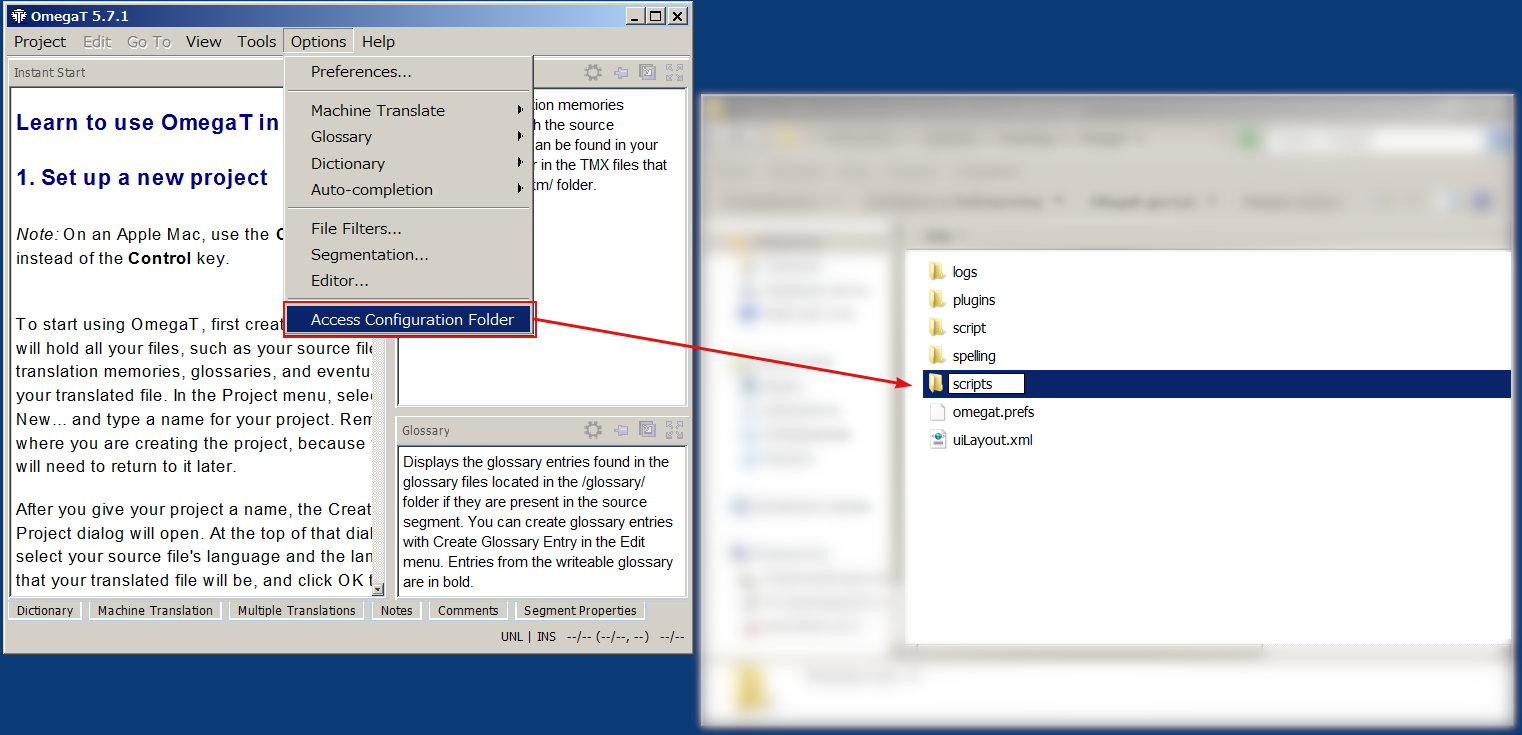
  3. Luckily, OmegaT allows you to specify an arbitrary location for scripts. Do it! It can be any location where you can write to. It doesn’t matter if it contains no scripts at the moment: you can add only the ones you need, and only when you need them.
    It makes sense to place the scripts folder in the OmegaT config folder (the folder where OmegaT stores its settings) just for convenience.

    But of course it can be any other folder.
  4. Copy the scripts you need into the folder that was set up for scripts.
    If you’re downloading from GitHub, you may need to view the desired script in raw format, and then save the page. If it saves as filename.groovy.txt, just remove the .txt part. If the file was saved in your Downloads folder, just move it to the folder set up for your scripts.
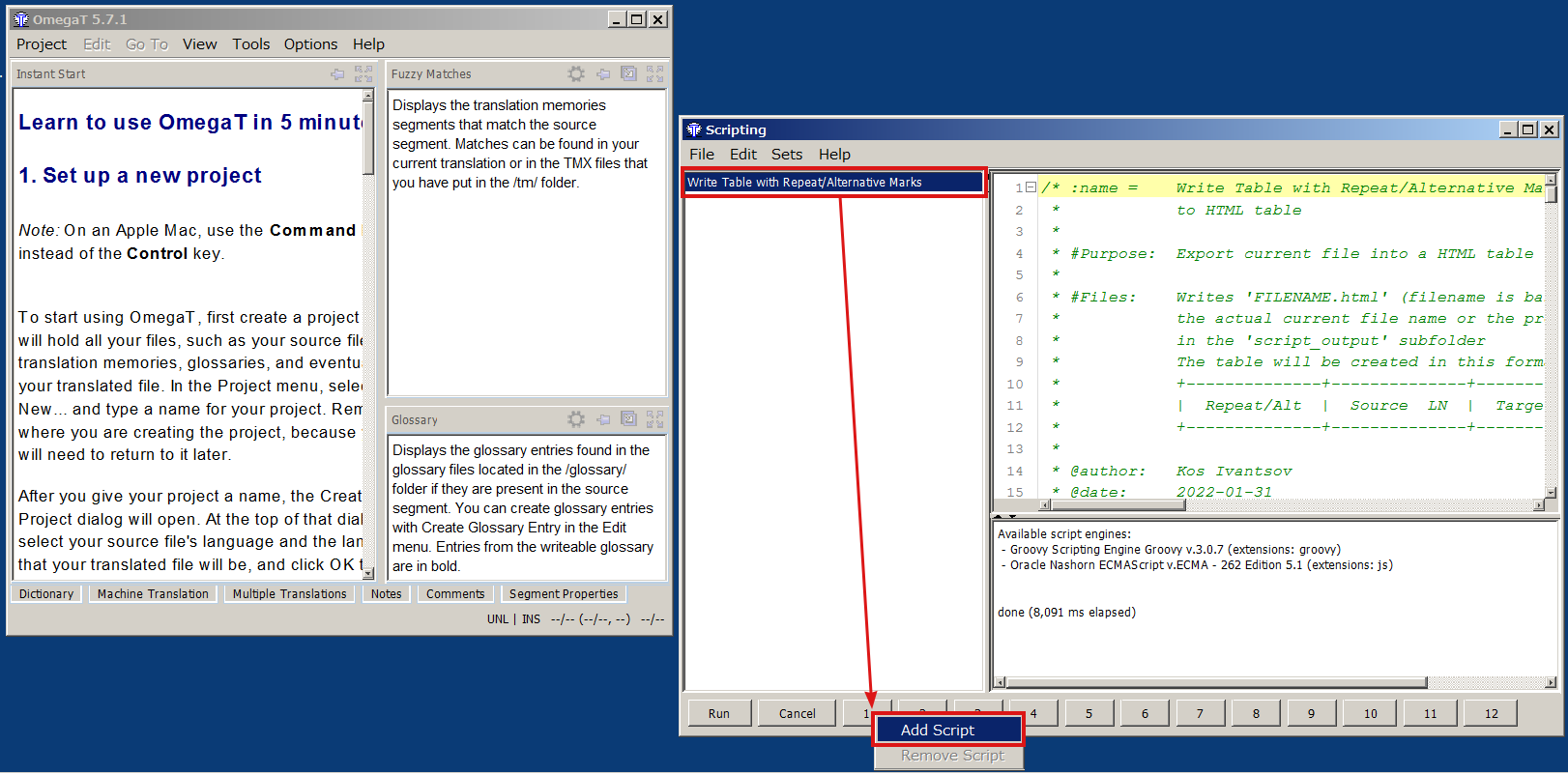
  5. In OmegaT, open Tools → Scripting, in the newly opened Scripting window, select the script you need (left part of the window) and press Run (lower left corner).
  6. If you need to run a script often, you can assign shortcuts to up to 12 scripts:
    • Select the script you want to run with a shortcut.
    • Right-click on one of the 12 buttons at the bottom of the Scripting window.
    • Select “Add Script”.
  7. The script thus installed is available in the Tools menu, or can be run by pressing Ctrl+Shift+Fn (Fn is a function key at the top of the keyboard, n is a number between 1 and 12, and the number on the button in the Scripting window corresponds to the number on the function key).

Select Source Text in OmegaT

There might be a number of situations when the whole text of the current segment’s source is needed for something other than translation itself: performing concordance or web search, writing a translation note in another application, asking your client or project manager about the text, etc.

Currently, in OmegaT it can be achieved in several fairly easy ways:

  • Selecting the text with the mouse (but who wants to do that?)
  • Inserting the source text into the target area (Ctrl+Shift+I or Ctrl+Shift+R) and selecting the text there
  • Unlocking the text caret with F2, and then using arrow buttons and Shift to select the text
    (If you want to have the caret unlocked by default when you start OmegaT, there’s a way to do it)

All that is fine, but it would be much nicer to have a simple shortcut to select that source text, similar to what Ctrl+A does (which in OmegaT Editor selects everything only in the target field, or the complete textual contents of other panes if the got focus). I’ve written a simple script that does just that, and though scripts can be bound only to Ctrl+Shift+F[1-12] keys, it’s better than not having a shortcut at all. Hopefully, this function might appear in OmegaT itself, but before it happened, here you have it:
Get it from SF.net
Get it from GitHub

To learn how to install and use OmegaT scripts, see this quick guide.

Happy selecting!

A [slightly more] sane initial OmegaT setup. Part I

Over the years of my daily use of OmegaT (I started using it back in 2009), I helped quite a few translators to make their first steps with the program. The funny thing is that almost every time a new person tries to learn the program, we change some of the same defaults to make it more usable and comfortable. So I thought it might be a good idea to collect those few initial setup changes here as a small series of posts so that anyone could refer to them at any point.

The first thing I always have new users change is the Editor behavior.

Continue reading