
Sometimes you end up in a situation where you have a source document and its translation, but no translation memory. Translation might have been done directly in Word or LibreOffice without any CAT tool. Or maybe you received a spreadsheet with legacy translation from a client who wants you to continue working on similar materials.
The problem is that to leverage existing translations efficiently in any CAT tool, you need a TM. And to create a TM, you need to align those two documents – match each source segment with its corresponding translation.
Solution
LibreOffice Aligner is an extension for LibreOffice that does exactly that. You import or paste your source text in one column, target text in another, and the extension helps you align them segment by segment. Once you’re done, it exports the result as a TMX file that you can use in OmegaT or any other CAT tool.
How it works
The extension adds an Aligner toolbar to LibreOffice. It lets you highlight text matching regular expressions. It also lets you move cells in either column without moving them in the other one, creating empty cells as needed. When you select two cells and click the button to align them, they get a unique background and begin to act like anchors – you can’t move other cells beyond the anchored row.
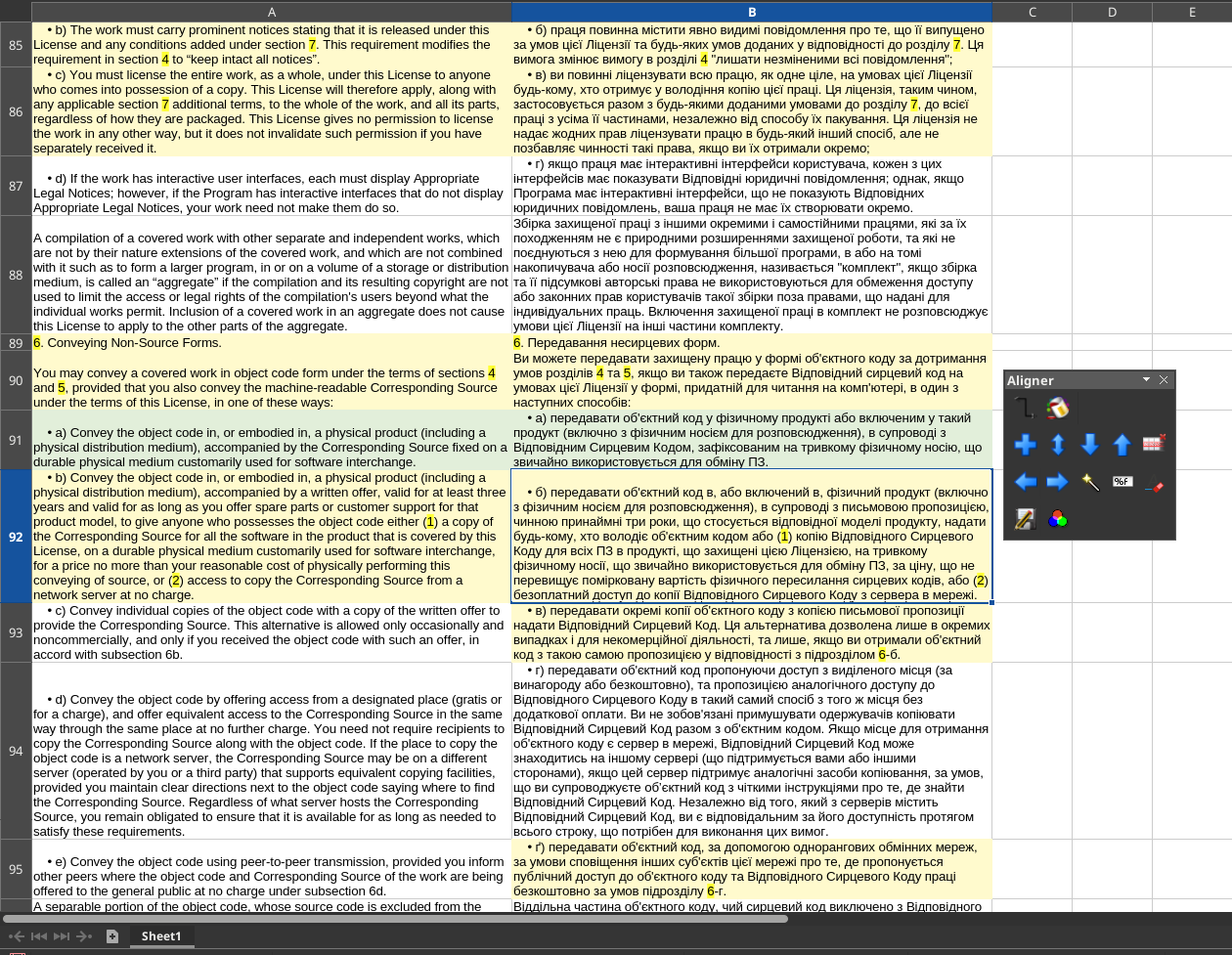
It also lets you merge and split segments in either column without affecting the other column.
Core alignment functions (aligning, anchoring, splitting, merging, moving) are mapped to hotkeys for a fast, keyboard-driven workflow.
The workflow is not automatic – you control the alignment, which is actually a good thing because automatic alignment often gets things wrong, especially with documents that have been heavily edited or formatted differently.
Bonus: XLSX/ODS to TMX converter
And here’s something that might not be obvious at first: this extension also works as a converter from spreadsheet-based translation tables to TMX format. If you have a bilingual XLSX or ODS file with source in one column and target in another, you can open it in LibreOffice Calc and use the Aligner to create a proper TMX file from it.
Availability
The extension was developed as part of the ongoing language technology initiatives at cApStAn and is now available on GitHub. While it’s still in development, it’s already quite usable for everyday alignment tasks.

