
OmegaT allows users to customize colors in the Editor and several other panes. This is a great feature! Being able to tailor the interface to your liking is essential—especially if you spend hours every day translating. Every little adjustment that makes your environment more comfortable and productive matters.
However, there is a catch: the default way to set colors in OmegaT doesn’t let you see how they look together in real-time, and applying changes usually requires a restart.
To solve this, there was once a standalone program for managing OmegaT colors, but the project has been inactive for years. The idea, though, was brilliant.
I have recreated this concept as a native OmegaT plugin that works seamlessly with OmegaT 5.7.x and 6.0.x.
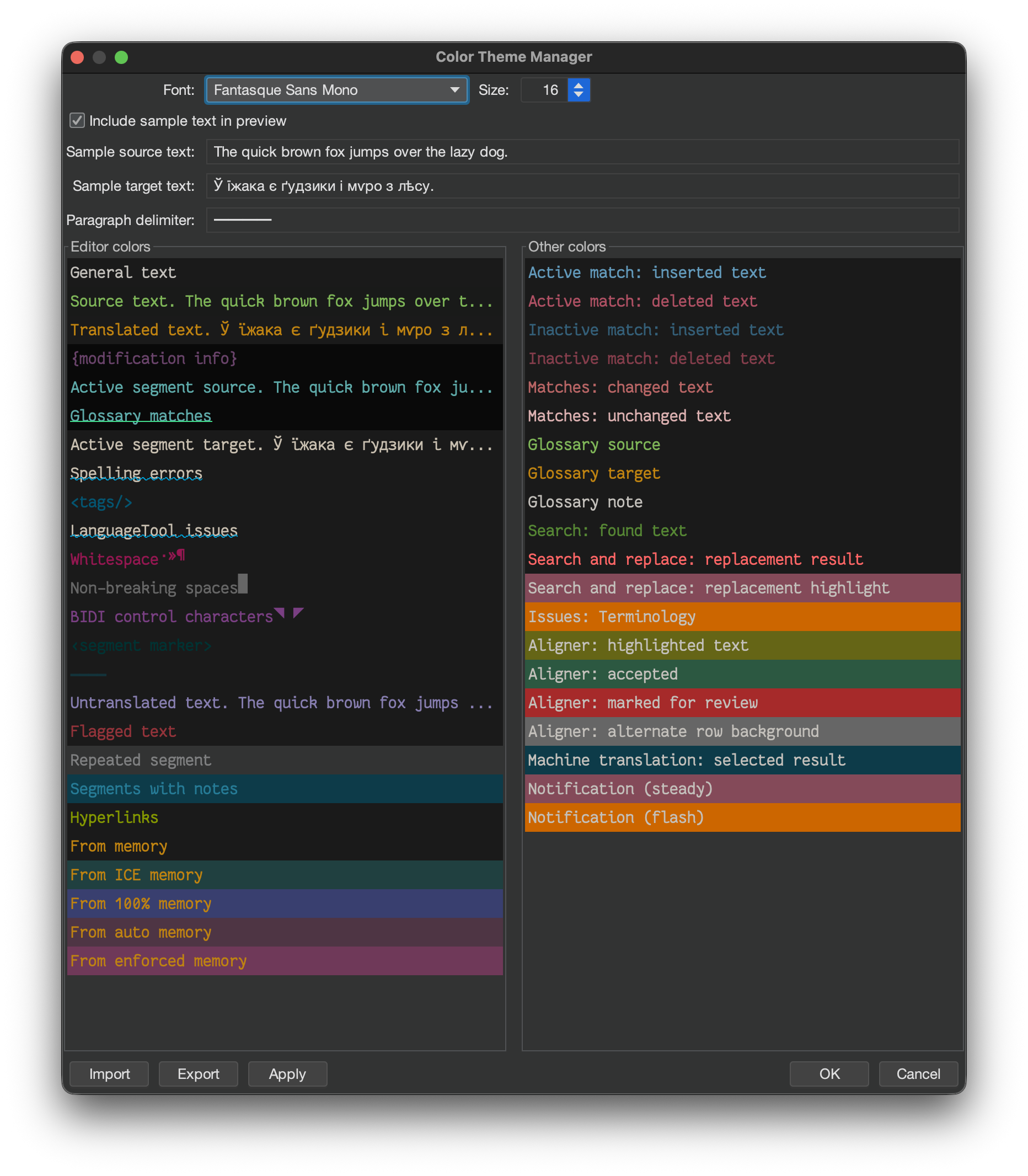
How It Works
Once installed, the Color Theme Manager is available under Tools → Manage Application Colors.
Setting up your theme is simple:
- Visual Preview: See exactly how your color choices play together without restarting.
- Easy Customization: Right-click on any item to pick a color.
- Flexible Options: Depending on the item, you can customize the background, foreground, or both.
- Copy/Paste: Colors can be easily copied and pasted between fields for consistency.
- Share Your Themes: You can export your color schemes to a file to back them up or share them with colleagues. Likewise, you can import themes created by others to instantly change your look.
Download & Installation
You can download the plugin here:
Download Color Theme Manager
To install:
- Restart OmegaT to load the plugin.
- Unzip the downloaded file.
- Place the jar file or the whole unpacked folder into the
pluginsfolder located in your OmegaT configuration folder.
Tip: To find this folder, open OmegaT and go to Options → Access Configuration Folder. If apluginsfolder doesn’t exist, simply create one. - Restart OmegaT to load the plugin.
 True Translation