Enhance OmegaT Productivity with Color Management Plugin

OmegaT allows users to customize colors in the Editor and several other panes. This is a great feature! Being able to tailor the interface to your liking is essential—especially if you spend hours every day translating. Every little adjustment that makes your environment more comfortable and productive matters.

However, there is a catch: the default way to set colors in OmegaT doesn’t let you see how they look together in real-time, and applying changes usually requires a restart.

To solve this, there was once a standalone program for managing OmegaT colors, but the project has been inactive for years. The idea, though, was brilliant.

I have recreated this concept as a native OmegaT plugin that works seamlessly with OmegaT 5.7.x and 6.0.x.
How It Works

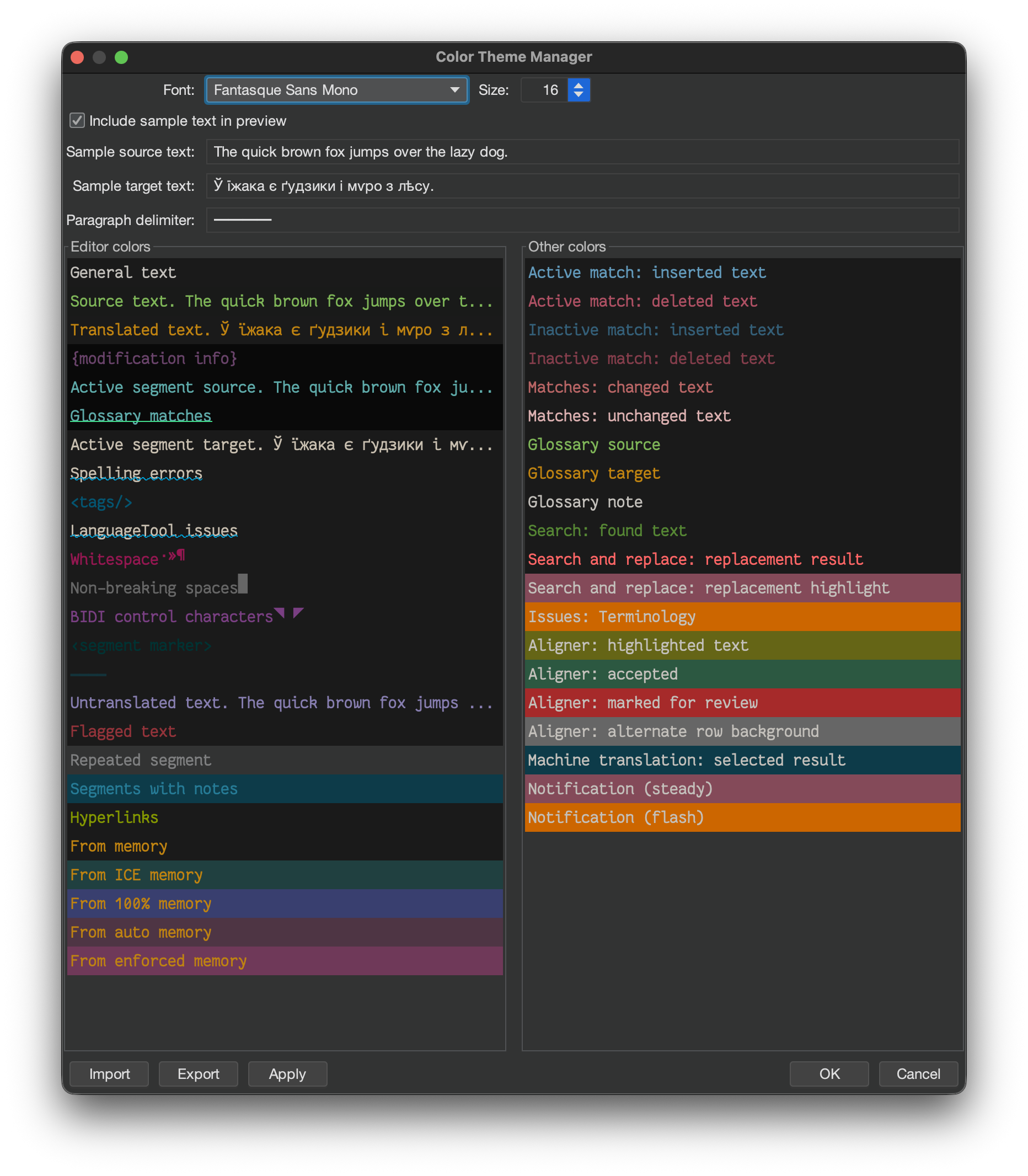
Once installed, the Color Theme Manager is available under Tools → Manage Application Colors.

Setting up your theme is simple:

  • Visual Preview: See exactly how your color choices play together without restarting.
  • Easy Customization: Right-click on any item to pick a color.
  • Flexible Options: Depending on the item, you can customize the background, foreground, or both.
  • Copy/Paste: Colors can be easily copied and pasted between fields for consistency.
  • Share Your Themes: You can export your color schemes to a file to back them up or share them with colleagues. Likewise, you can import themes created by others to instantly change your look.

Download & Installation

You can download the plugin here:
Download Color Theme Manager

To install:

  • Restart OmegaT to load the plugin.
  • Unzip the downloaded file.
  • Place the jar file or the whole unpacked folder into the plugins folder located in your OmegaT configuration folder.
    Tip: To find this folder, open OmegaT and go to Options → Access Configuration Folder. If a plugins folder doesn’t exist, simply create one.
  • Restart OmegaT to load the plugin.

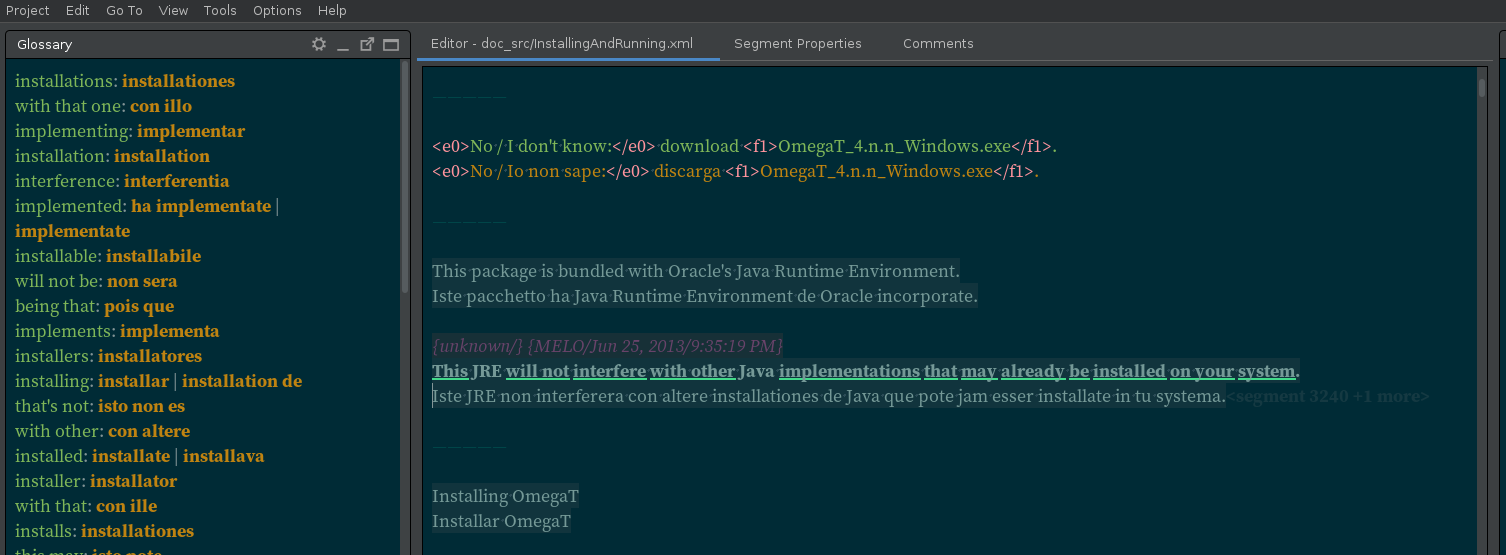
Compact glossary layout updated

As announced previously, an alternative glossary pane layout was made available as a plugin. The newest update (v.1.1.0) now includes 4 variants of that compact layout:

  • 1A
    • source: target [comment] | target [comment] | [comment] (separator | is styled as normal text — the same as in the original version)
  • 1B
    • source: target [comment] | target [comment] | [comment] (separator | is styled as target terms)
  • 2A
    • source: target (comment), target (comment), (comment) (separator , is styled as normal text)
  • 2B
    • source: target (comment), target (comment), (comment) (separator , is styled as target terms)

Once again, here’s the project itself, and here is where you can download the compiled version. If you run OmegaT on Java8, make sure to download the right build. On Java11 it doesn’t matter which build is used.

Comments, bug reports, complains, latest gossips and donations are always welcome.

Take care and good luck!

Alternative OmegaT Glossary Layout

It has been possible for quite some time now to choose which Glossary pane layout to use in OmegaT. Selection isn’t that great, only two layouts are provided: Default and Dictionary. But at the same time this feature had been introduced, it became possible to add custom layouts via plugins. I haven’t seen any, but the possibility is there. And just recently, Hiroshi Miura, a very prolific OmegaT developer, published a plugin skeleton just for this purpose. I used what he generously shared, and made an alternative compact layout for the Glossary pane.

It puts target terms right after the source term on the same line, and separates them only by a vertical bar and spaces. If there’s a comment for the term, it follows it immediately enclosed in square brackets. If OmegaT is set up to merge multiple target definitions for the same source term, and there are duplicated entries (i.e. two or more identical target terms for the same source term) with different comments, the comments will be separated by the vertical bar, but the term itself won’t be repeated.

To enable this layout in OmegaT, download the plugin (the ready-to-use jar is in the Releases section), put it into plugins subfolder in your OmegaT config folder, restart OmegaT, and select it under PreferencesGlossaryGlossary layout: → Compact Glossary Layout

Happy translating!